FotoCube Smart Display
How to Pair the Smart Display with the FotoCube APP
Make sure your Smart Display is correctly connected to the Wi-Fi network and your mobile phone has downloaded and installed the FotoCube application.

Pairing Code
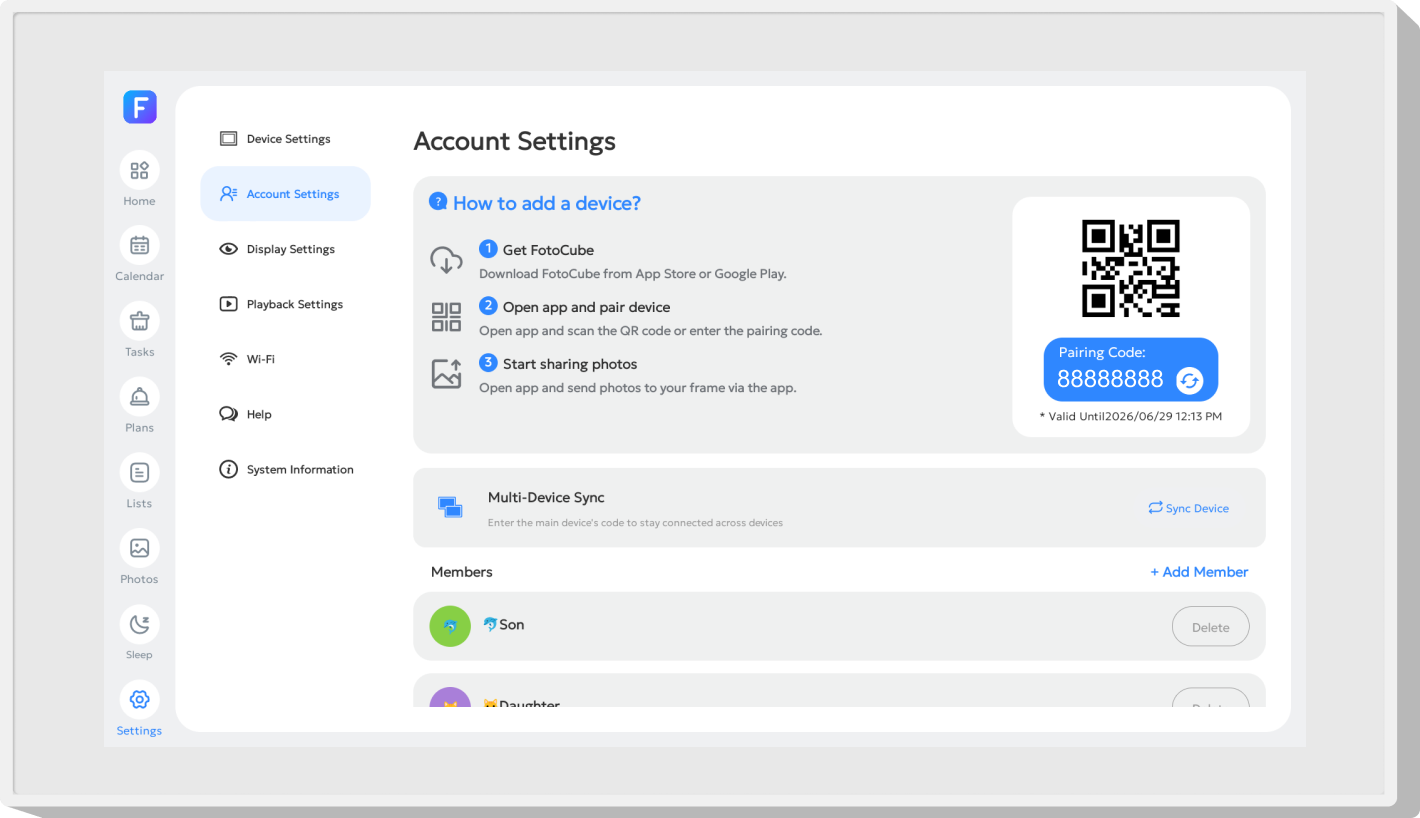
After activation, a user setup pop-up will show the pairing code and QR code required to pair the display with the APP. You can find the code later in Account Settings under Settings if you skip this step.
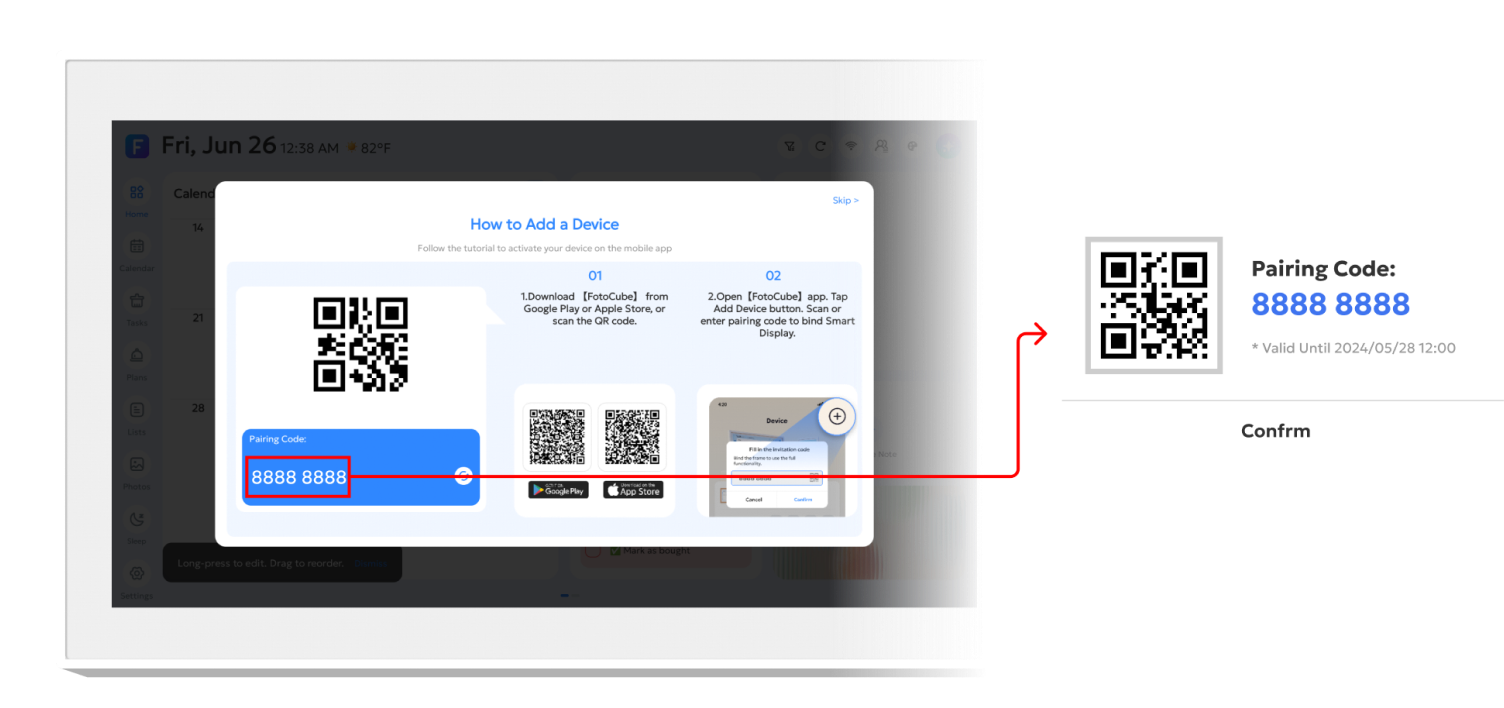

Share the pairing code
Copy the Pairing Code, or show the QR code to another user. The user can use it to pair their account with this Smart Display.
Pairing the Smart Display with the Mobile App
Open the FotoCube App, register and log in to your account, then tap the  button in the upper right corner. Scan the device QR code or enter the pairing code to add the device.
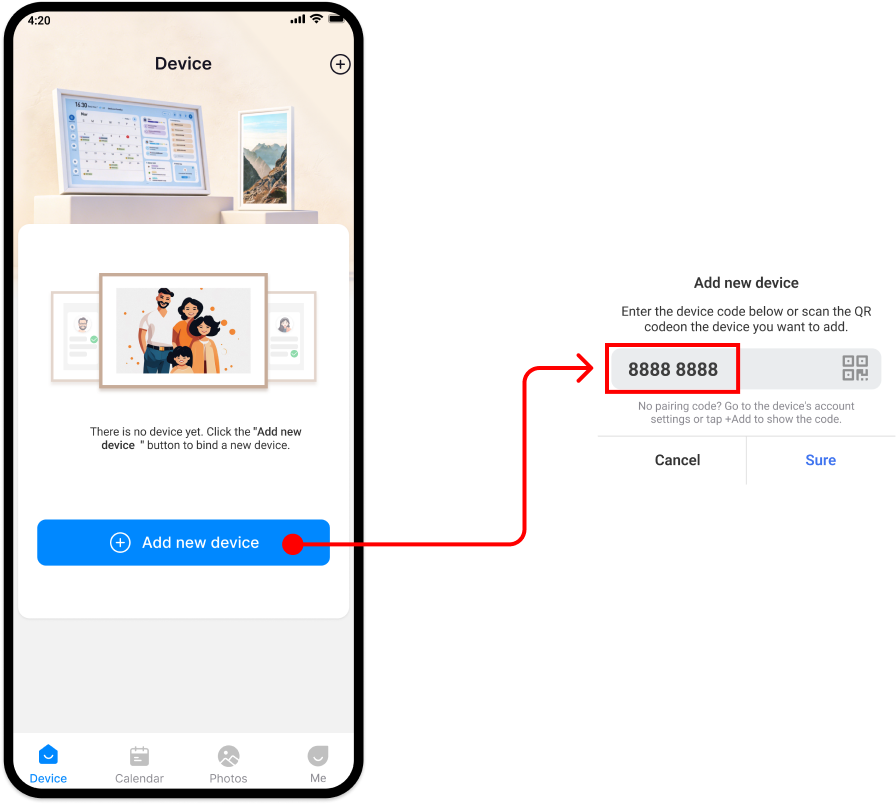
Check Connected Devices
Once the device is connected to your FotoCube APP, you can find it in "Settings - Account Settings" on the device or in the "Device" tab of the APP.